Usually photos taken within the iNaturalist App or in the photos app on your device phone will import location as well as date/time.
Updating Location
Note your location on your observation, especially pay attention if it is No location. Use the Edit pencil to change any part of your observation.
The first screenshot is in normal mode and you will have to scroll down to see the location. The 2nd screenshot is from Advanced Mode.


While in edit mode, click on the area that says the location or “No location”. I sometimes accidentally click on the time, so it does take a bit of getting used to where to click.

Navigate the map by dragging it around with one finger. Zoom in and out using 2 fingers. To help you identify where you saw the organism on the map, you can type in a name of a location to see if it is in the database (yellow highlighted field) or you can click on the bottom right button (purple circles) to move the map to your current location.

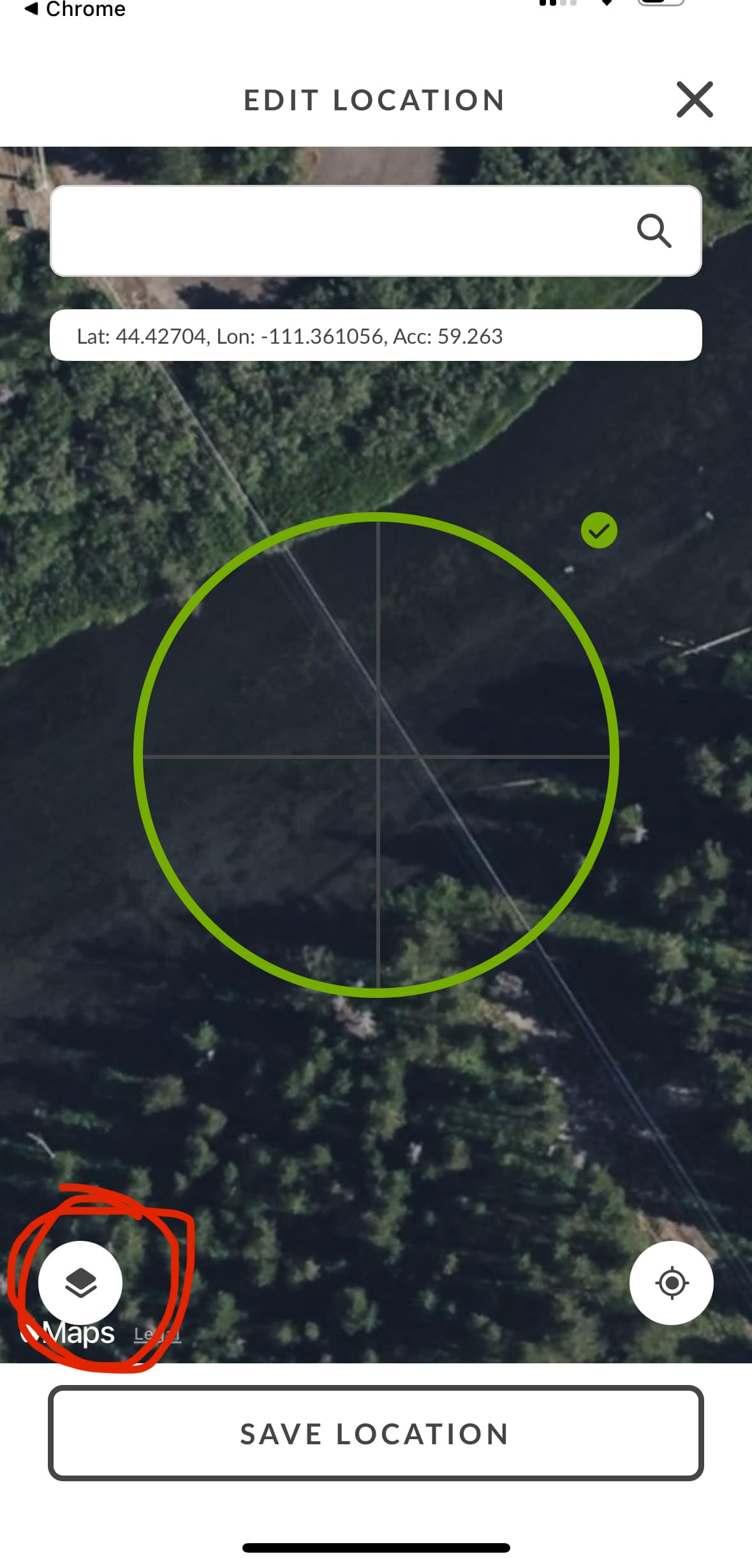
Use the bottom left button (red circles), to toggle between street map and satellite views. Zoom in the area, as accurately as you can remember. Save Location. Remember to Save the changes on your observation as well.